
 Login


PDF & DOCX FILES
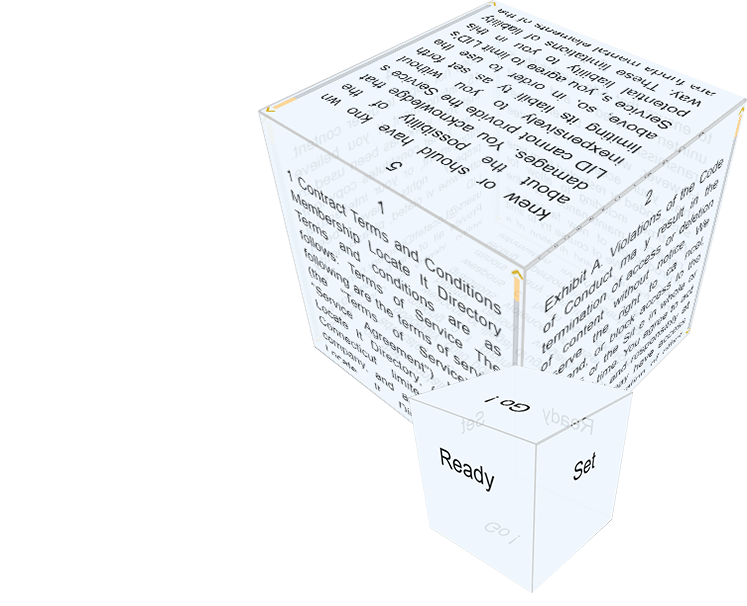
3D READER
Read faster, organize & take notes,and share them with study groups

The Basics
01
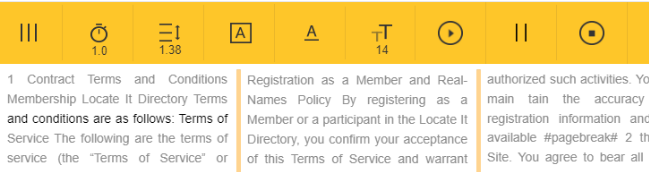
The Reading Board
After uploading a book, you can speed read and annotate along the way.
02
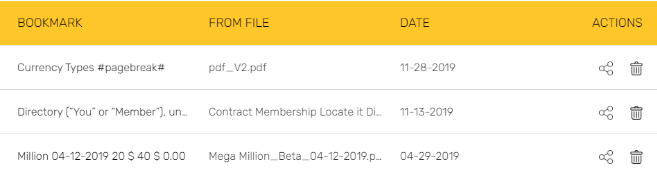
Create Bookmarks
Pause reading at anytime to bookmark important sections.
03
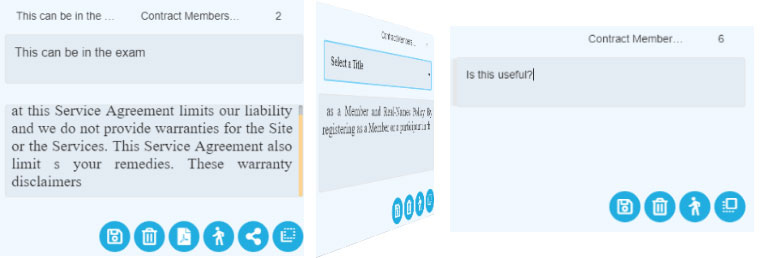
Note Taking
Use CMD + click [Mac] or CTRL + click [PC] to highlight text and create notes.

Read your way
With a variety of options, you can create the perfect reading environment


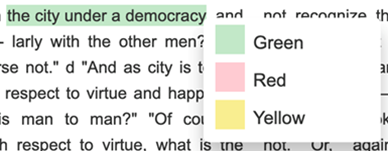
Prioritize Notes
Right click to set the importance of text. Use green to mark content to keep track of, yellow for review, and red for immediate study.
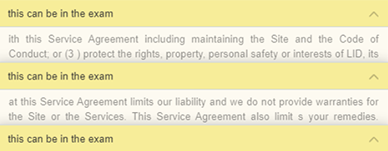
Sort and Review
Notes can be sorted by date, title, and color.
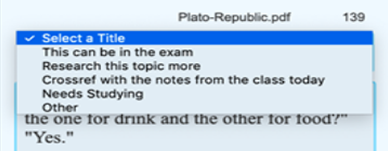
Set Title & Questions
Label and organize notes. Notecards can be be flipped around to write study questions on the back.

Read and
Take Notes

Search All in One
Save time trying to find important sections of text in your books. Then save extra time with the ability to search through your notes.

Sort & Prioritize
Keep on top of your learning. Sort notes by date, title, and importance. Save the notes you need and discard the rest.

Share and print
Coordinate study sessions with friends by sharing your notes. It’s also easy to print when you export notes to PDF.